
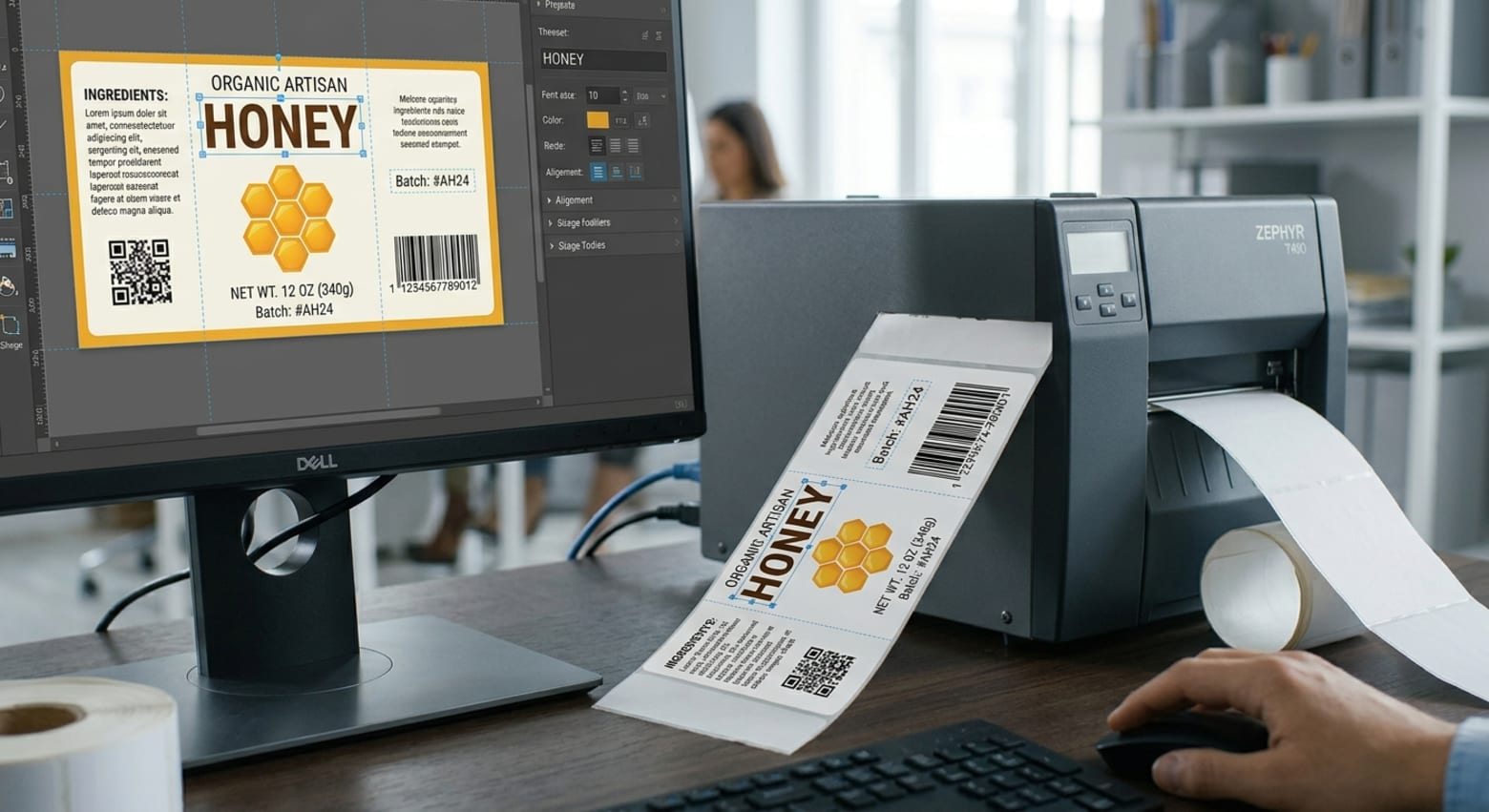
Designing an effective label involves more than choosing colors, fonts, and images. The layout must also work with the printer, label material, and dimensions used in your business. A design that looks perfect on a computer screen may become misaligned, difficult to read, or improperly sized when printed. Using suitable label printing software and understanding your printer's capabilities can help prevent these problems and produce consistent results.
Before creating a label, take time to review your equipment and printing requirements. Whether you print product labels, shipping stickers, inventory tags, or barcode labels, planning the layout around your printer setup can reduce material waste, improve readability, and make daily operations more efficient.
1. Identify Your Printer Type and Capabilities
The first step is to understand which printer your business uses. Different printers have different strengths, and these differences can influence the design process.
Thermal printers are commonly used for shipping labels, warehouse identification, and barcode printing because they can handle frequent printing tasks. Inkjet and laser printers may be suitable for businesses that need colorful product labels or print on compatible sheet-based materials.
Check the printer's supported label dimensions, maximum print width, resolution, and recommended media types. These specifications help determine how much space is available for text, logos, and barcodes. Planning around these limitations from the beginning can prevent unnecessary redesigns.
2. Measure the Label Before Designing
Accurate measurements are essential for a successful layout. Determine the label's width and height, along with any gaps between labels or margins required by the printer. If you use a roll-fed printer, check the label orientation and media settings as well.
Create your design using the actual label dimensions rather than relying on a general page size. This makes it easier to position each element correctly and reduces the likelihood of content being cut off during printing.
Leave enough space around the edges for reliable printing. Some printers cannot print directly to the edge of a label, so keeping important text and graphics within a safe margin helps protect essential information.
3. Arrange Information by Importance
A good label should communicate its most important details quickly. Product names, identification numbers, prices, and barcodes should be positioned according to their purpose.
For example, a retail product label might place the product name near the top, followed by the price and barcode. A warehouse label may prioritize a large SKU number so employees can identify items quickly.
Avoid overcrowding the layout with unnecessary graphics or excessive text. Choose readable fonts and appropriate sizes, especially for small labels. If the label contains several pieces of information, use spacing and alignment to make each section easy to distinguish.
4. Use Software Features to Improve Accuracy
Suitable label printing software can simplify the process of building layouts that match your printer setup. Look for options that allow you to specify label dimensions, adjust margins, create reusable templates, and position text and barcodes precisely.
Templates are particularly useful when printing similar labels repeatedly. Once you have created and tested a layout, you can reuse it for different products without starting from scratch.
If your workflow involves spreadsheet data or barcode generation, check whether the software supports these features. Automatically importing product details can reduce manual entry and help maintain consistency across large batches of labels.
5. Test Alignment and Print Quality
Always print a sample before producing a large quantity of labels. Review the result carefully to make sure text is readable, graphics appear correctly, and barcodes can be scanned when required.
If the content appears too high, too low, or off-center, check the label dimensions, printer settings, media alignment, and design margins. Confirm that the selected paper or label type matches the printer's configuration.
Small adjustments during testing can prevent significant waste later. Keep a record of successful settings for each label type so future printing jobs can follow the same process.
6. Prepare for Future Printing Needs
Your labeling requirements may change as your business grows. New products, additional printers, and larger production volumes can create new challenges. Saving templates, documenting printer settings, and maintaining consistent design standards can make future updates easier.
Choose layouts that can accommodate necessary information without becoming cluttered. A flexible design makes it simpler to introduce new products while maintaining a consistent brand appearance.
Conclusion
Planning label layouts around your printer setup helps ensure that designs work reliably in real-world conditions. By checking printer specifications, measuring labels accurately, organizing information clearly, and testing sample prints, businesses can improve print quality and reduce waste. With the right preparation and suitable software, creating professional, consistent labels becomes a more manageable part of everyday operations.
#PrintDesign #LabelPrinting #Printing